The target is checked again when the operation begins, the interface is not treated as the source of truth.
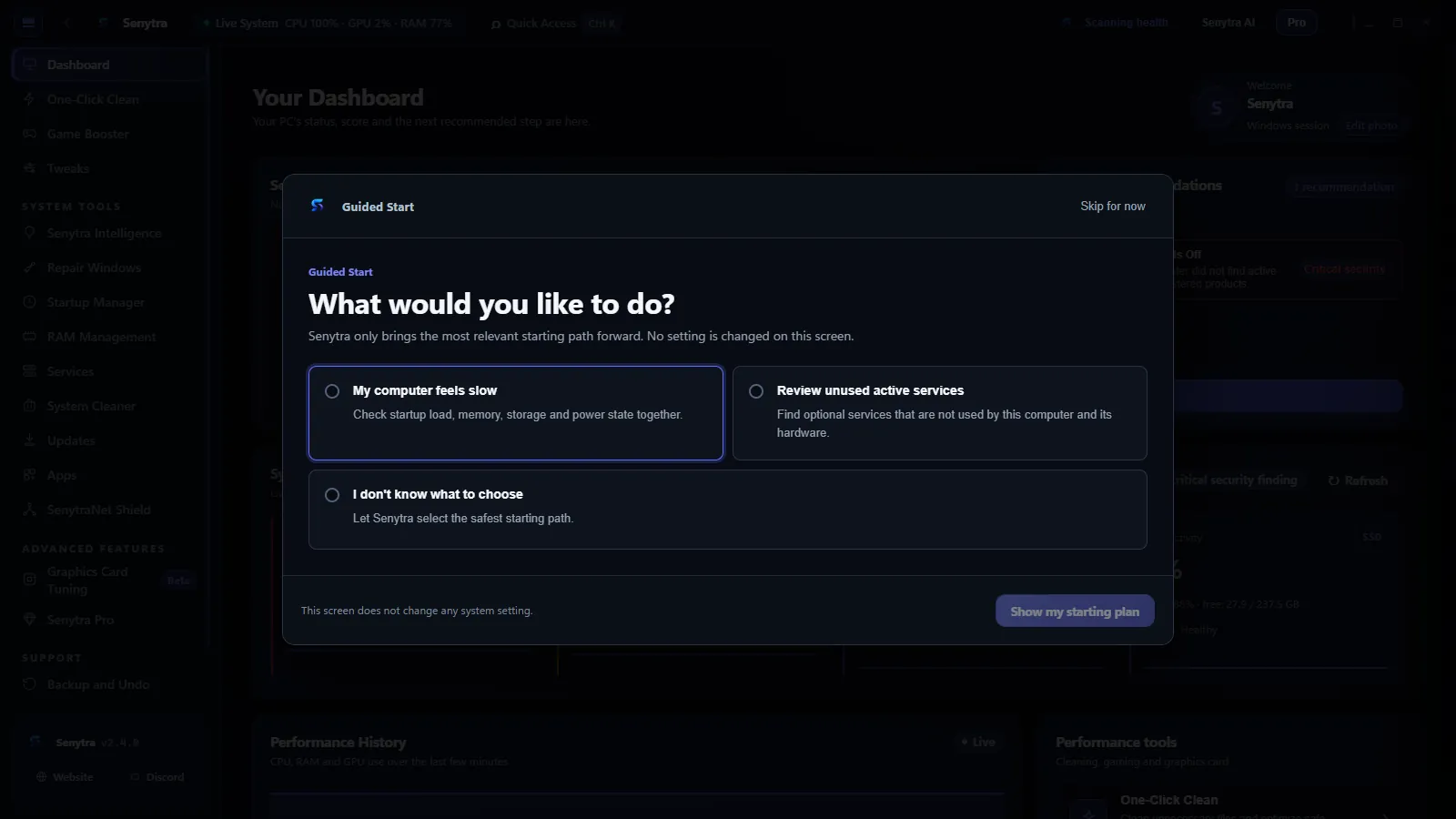
Start with a
quick setup.

A quick view of the system areas worth checking.
Senytra reduces unnecessary Windows load and shows whether the change helped. Senytra Eşik compares two power plans in the same 3D scene, measures FPS and frame time, then asks before keeping the result.


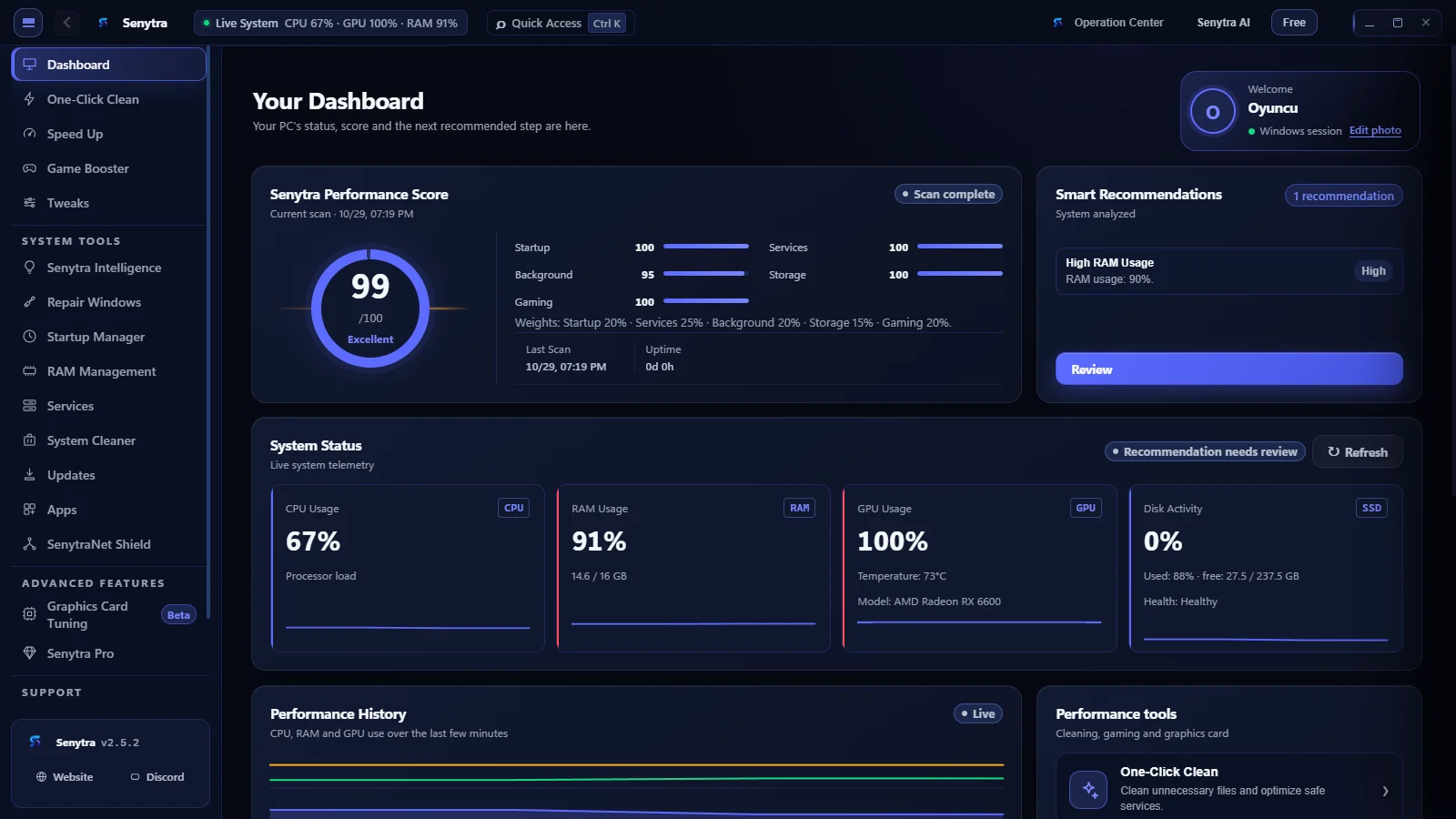
This demo gives the dashboard some movement: CPU, memory, GPU and startup activity update while the page is open.
Move the divider to see the example state before and after cleanup. The values below follow the same position.
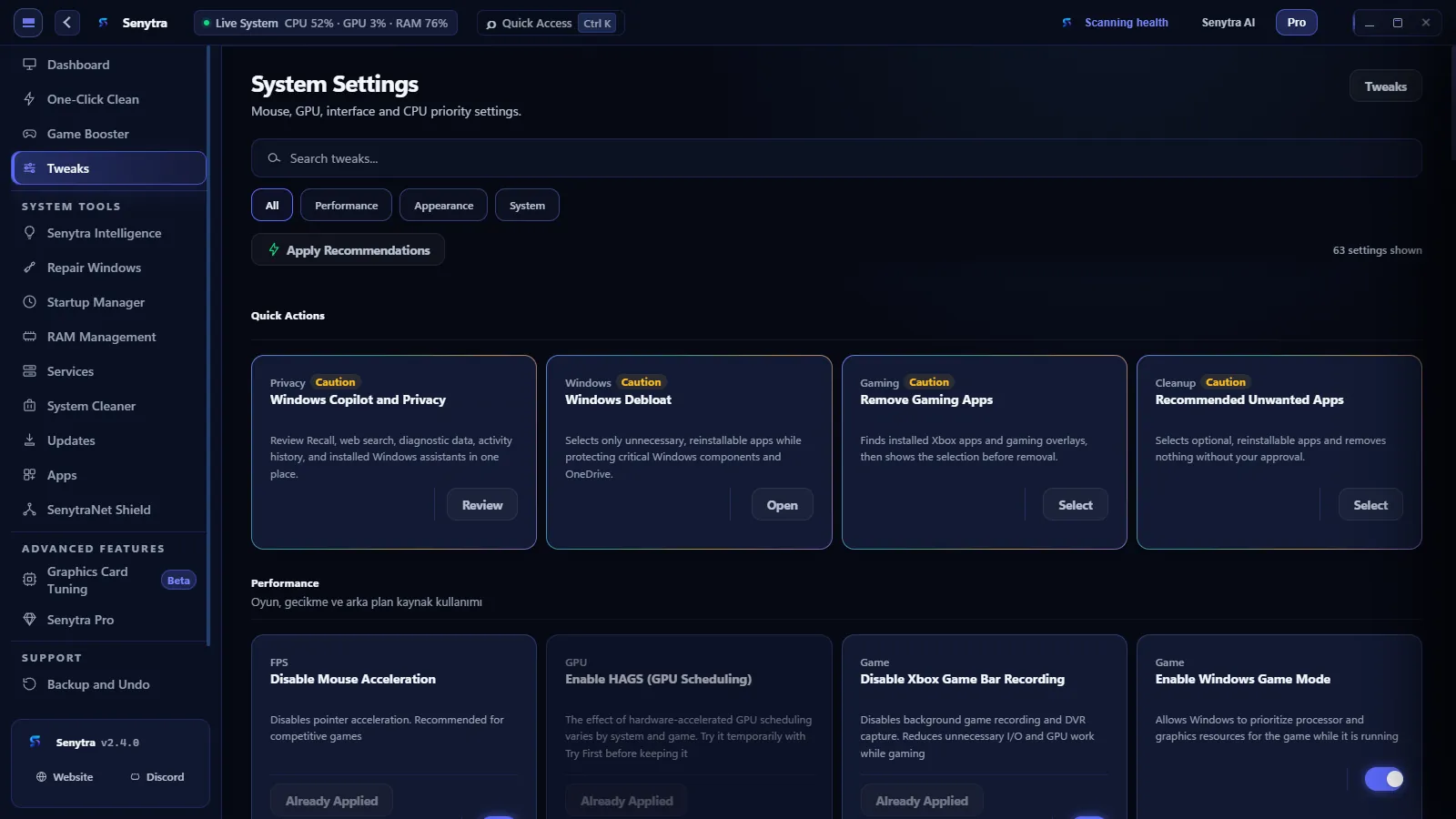
Switch between a few real product views to see how the same information is laid out inside Senytra.

You should not have to guess what an optimizer is touching. These are the kinds of Windows settings Senytra can put in front of you for review.
Senytra does more than send a Windows command. It reads the current state, prepares a recoverable operation, runs it with the required authority and checks the real Windows state again before reporting a result.
The target is checked again when the operation begins, the interface is not treated as the source of truth.
The requested change is kept explicit and supported settings are backed up before modification.
Service, registry, power and repair operations use controlled execution paths with elevation only where Windows requires it.
A successful command is not enough. Senytra reads the target state after the operation and reports whether the intended result was actually reached.
See the operation name, target, previous state, requested state, actual result and verification outcome instead of a generic success message.
Supported changes preserve the previous value in integrity-checked local records. If verification fails, the engine can use that state for recovery instead of guessing.
The repair center checks fresh Windows state, explains the planned steps and verifies the affected component after repair. It does not turn a completed command into a fake success.
The history shows what ran and when. Where a change supports restoring, you can review that path from the same place.
Not every Windows change has a perfect one-click undo. Senytra keeps supported restore options and the change history visible instead of pretending otherwise.
The idea is simple: show the system, explain the change and keep a record of what ran.
System information stays visible while you decide what is worth changing.
A setting should make sense before you press the apply button.
Important actions stay in the change history so you can check them later.
System status, recommendations and controls are easier to follow when they are not scattered across tools.
Move beyond one-time tweaks with measured game sessions, application-aware automation and a longer performance history.
Explore Senytra ProClear, official guides about Senytra, PC optimization, cleanup, startup activity and gaming performance.
See the system, review the change, then decide whether to apply it. That’s the whole idea.